top of page

How to add a new patient & create a prescription? - APA EMR

Updated: Feb 22

APA EMR guide on adding patients and creating prescriptions. Features interface screenshot, logo, and two men in suits. Contact via WhatsApp +91 9432288997.


Asian Pain Academy EMR dashboard displaying prescription stats and quick actions for creating prescriptions and adding new patients.

APA EMR Software (Asian Pain Academy EMR) is a purpose-built electronic medical record system exclusively designed for pain management practices. It facilitates structured and comprehensive documentation of pain assessments, interventional procedures, imaging, follow-ups, and clinical outcomes—ensuring streamlined workflows, precise record-keeping, and robust medico-legal security. Developed by pain physicians for pain physicians, APA EMR promotes clinical efficiency, standardization of care, and excellence in patient management. Learn - How to add a new patient & create a prescription


How to add a new patient?

  • Click the blue button mentioned add new patient

Blue button with a person icon and white text: "Add New Patient, Register patient." Additional text: "Register a new patient with complete medical info and history."
  1. Put the basic information & contact information of the patient

Form titled 'Add New Patient' with fields for basic and contact info. Includes dropdowns, text boxes, and buttons for 'Save' and 'Cancel'.
  1. Lastly save the patient details & add the new patient


How to create a prescription?


  • Click the button creat a prescription

Green icon with a paper and pen on a light blue background. Text: "Create Prescription. Most used action. Write a new prescription..."
  • After clicking it, a white page opens displaying various patient segments.


Medical form interface with tabs for Medications, Patient Info, and more. Features fields for patient details and buttons for search actions.

By clicking the medication bar, the patient’s prescribed medicines can be entered.

Prescription interface with empty fields for medication name, dosage, duration, and instructions. Buttons for adding and managing medications.

By clicking the Patient Info button, patient details such as name, age, gender, and address can be entered.

Medical interface for creating a new prescription, featuring patient info tabs, search field, and input boxes for patient details.

  • Click the History button to enter the patient’s vitals, including height, weight, pulse, and blood pressure.


  • “Click the Symptoms button to enter and save the patient’s chief complaints and symptoms.”
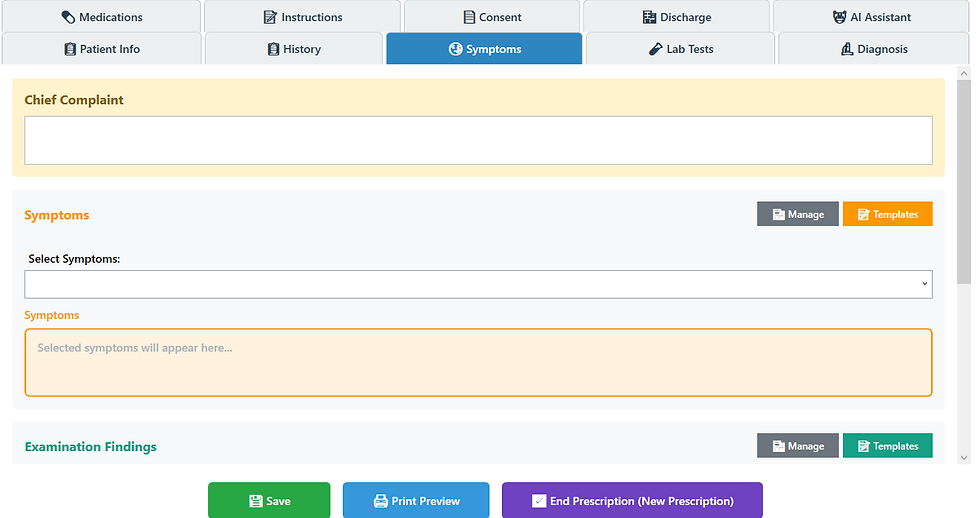

Medical software interface showing fields for Chief Complaint and Symptoms with buttons for Save, Print Preview, and Templates.
  • Prescription form interface with tabs: Patient Info, History, Symptoms. "Informed Consent Document" section, buttons for Save, Print Preview.
    • Click the Consent button to write the consent form before any pain treatment procedure.

  • “Click the Lab Test button to record and save the advised laboratory investigations and their detailed results.”

Medical discharge form interface, with tabs for patient info and more. Green discharge section, options to save, print, or end prescription.
Medical form interface titled "Create New Prescription" with tabs and dropdowns for diagnoses. Buttons for saving and printing are at the bottom.
  • By clicking on the diagnosis button, patients' different diagnoses can be saved


Comments


Asian Pain Academy 

  • Facebook
  • Youtube
  • X
  • Instagram
  • Whatsapp

Contact No - +91 98304-48748 , 9830262733,  Email - asianpainacademy@gmail.com
Registered Office Address - AB-46, Street Number 89, Action Area 1A, Newtown, Kolkata, West Bengal 700163
Workshops will be conducted at 
Rajarhat PainClinic - Address: AB-46, Street Number 89, Action Area 1A, Newtown, Kolkata, West Bengal 700156
Samobathi  Pain Clinic - Address: 6/Z Umakanta Sen Lane, Kolkata, West Bengal 700030

© 2024 by Asian Pain Academy.

Frequently asked questions

bottom of page